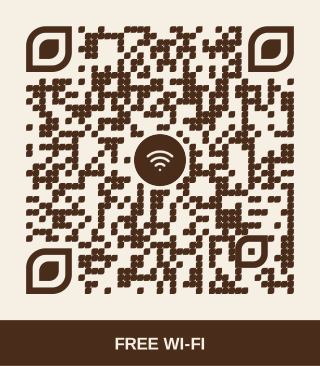
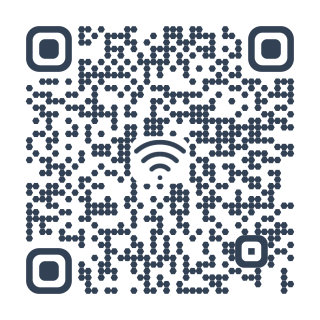
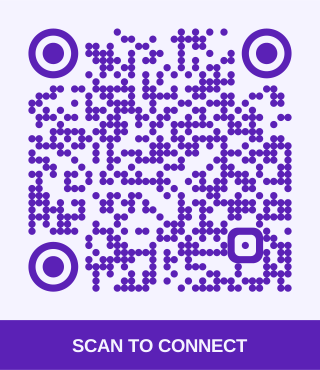
How to make a Wi‑Fi QR code
Type your network’s name (the SSID) exactly as it appears in your phone’s Wi‑Fi list, capitals and spaces included, then its password. Leave the security on WPA unless your router says otherwise. Download, print, and guests join by pointing their camera at it.
Which phones can scan it?
iPhones and Android phones from the last several years join Wi‑Fi from the camera app. If yours doesn’t, Google Lens and most QR scanner apps do.
Private by design
The code is made in your browser: your network name and password are never sent to olinqs. The password is stored in the code itself, so anyone who can scan it can join. For a shop or a rental, use a guest network and keep the main one to yourself.
Questions
What if I change the password?
Make a new code and replace the old one. Wi‑Fi codes are read by the phone itself, so they can’t be changed after printing or be dynamic.
My network uses WPA3. Which security do I pick?
Choose WPA / WPA2 / WPA3: phones work out the exact version when they connect.
Does it work with hidden networks?
Yes. Tick “Hidden network” so phones know to look for it.
Can it be scanned from a screen?
Yes. Show it on a TV or tablet for guests; turn up the brightness if it doesn’t scan at once.