Guide
QR code not scanning? Why, how to fix it, and how big to print it
When a phone won’t read a QR code, the cause is almost always in the print: too small for the distance, too little contrast, no margin, a logo covering too much. Each one has a fix. And if the code scans but nothing opens, the problem is the address it holds, not the print.
Checked 28 October 2026
In short
- The most common cause: printed too small for the distance it’s read from. As a rule of thumb, people can scan a simple code from about ten times its width. Work out the size for yours.
- Dark on light, with strong contrast. Pale colours and light codes on dark backgrounds fail on many phones.
- Leave a margin of empty space around the code: four modules (the code’s small squares) wide, by the QR code standard.
- A logo needs error correction to match, and the less a code holds, the bigger and easier to read its squares are.
- It scans, but nothing opens? Then the address is the problem: check where it leads.
1. Printed too small for the distance
A phone needs to see each module (each small square of the code) as a few pixels. The further away it is, the bigger the modules must be. A code that scans on your desk can fail on a poster read from across the street.

Print it at least
14.8 cm 5.9 in
wide and high, margin included
The code itself: 11.6 cm (4.6 in), 29 modules of 4 mm each, plus a margin of 4 modules on each side.
Left empty, it counts a short web address: 29 modules across. Paste what your code holds for its own count, or count the modules along one side of a code you already have.
How it’s worked out
Each module gets at least 1/250 of the scanning distance, and the code never goes under 2 cm (0.8 in) across. For a simple code of 25 modules, that’s the usual rule of thumb: scannable from about ten times its width. Then come 4 modules of margin on each side.
This is a rule of thumb, not a standard: no standard sets a size for a distance, because it depends on the phone’s camera, the light and the print. It leaves some room for an average phone in ordinary light. In dim light, or where people will be in a hurry, go bigger.
| Where it’s read | From | Print it at least |
|---|---|---|
| Business card, label, packaging | 15 cm (6 in) | 2.6 cm (1.1 in) |
| Menu on the table, flyer in hand | 30 cm (1 ft) | 4.5 cm (1.8 in) |
| Counter display, door sticker | 50 cm (20 in) | 7.4 cm (3 in) |
| Poster, from up close | 1 m (3 ft) | 14.8 cm (5.9 in) |
| Poster, across a room | 2 m (6.5 ft) | 29.6 cm (11.7 in) |
| Shop window, stand seen from the aisle | 5 m (16 ft) | 74 cm (29.2 in) |
| Billboard, banner on a building | 20 m (65 ft) | 2.96 m (9.8 ft) |
Fix: reprint it bigger, or bring the code to where people stand: at eye level, close to where they pass. For print, download the SVG file: it stays sharp at any size, where a small PNG blown up goes blurry.
2. Low contrast, or light on dark
Scanners look for dark modules on a light background. Pale yellow on white, grey on grey or a gradient that fades out leave too little difference. Light codes on dark backgrounds (inverted) are read by many phone cameras today, but not by every scanner app or older phone.
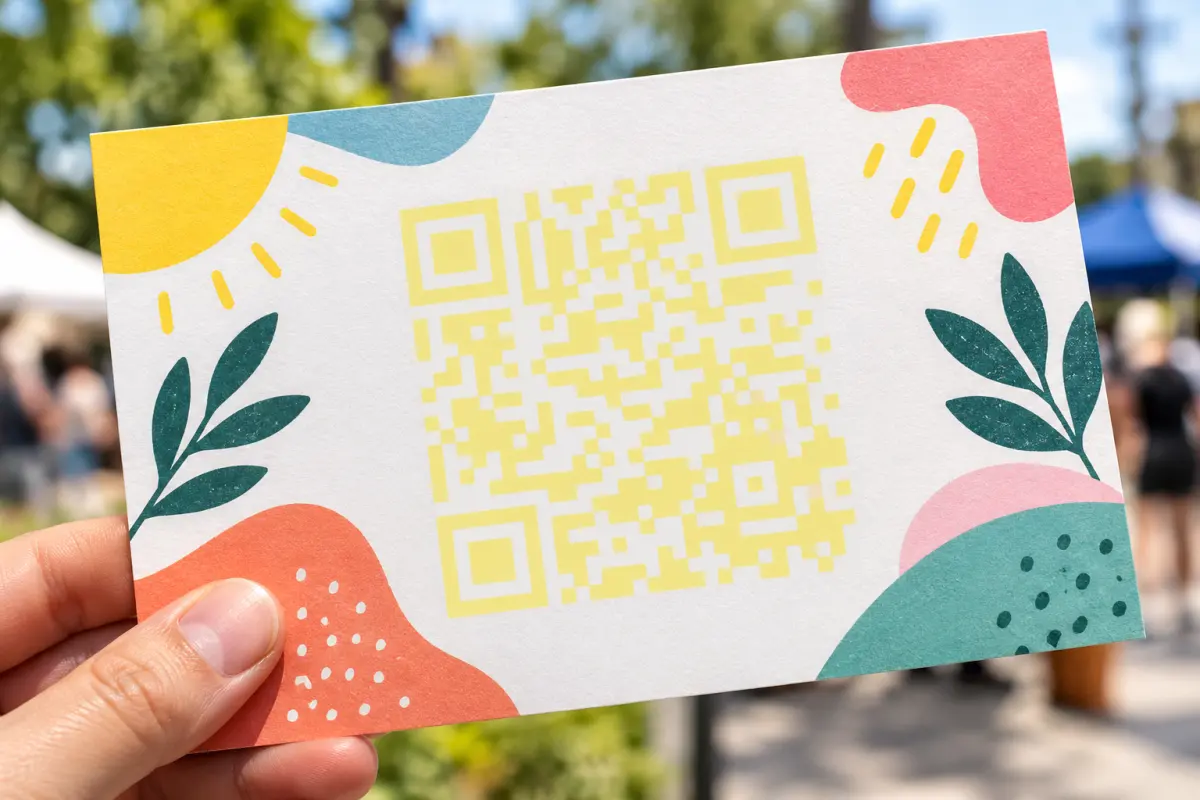
Fix: a dark colour on a light one. Black on white is safest; a brand colour works if it’s dark enough. Don’t trust the screen: test a printed copy, since ink, paper and dim light all cost contrast.
3. No margin around it
A scanner finds a code by its edges. The QR code standard (ISO/IEC 18004) asks for an empty margin, the “quiet zone”, 4 modules wide on all four sides, in the same light colour as the background. Text, a frame or a photo that runs right up to the code can stop it from being found.
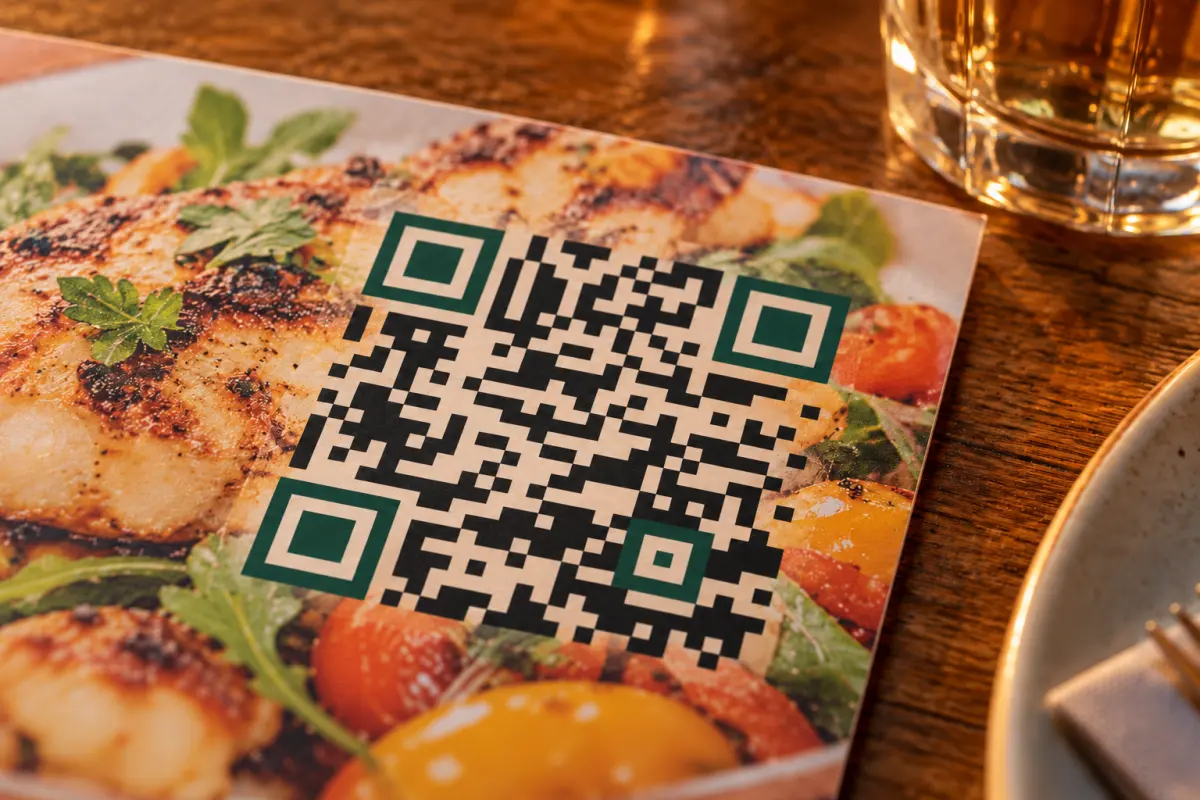
Fix: keep the margin clear, and count it in the size: the calculator above includes it. When a designer crops the white border off to save space, the code may scan on screen and fail in print.
4. A logo too big for the error correction
A logo in the middle covers modules. The code still scans thanks to error correction: spare data that lets a scanner rebuild what’s missing. There are four levels, from Low (about 7% of the code can be lost) to High (about 30%). A logo bigger than its level can make up for, or one over the three big corner squares, breaks the code.
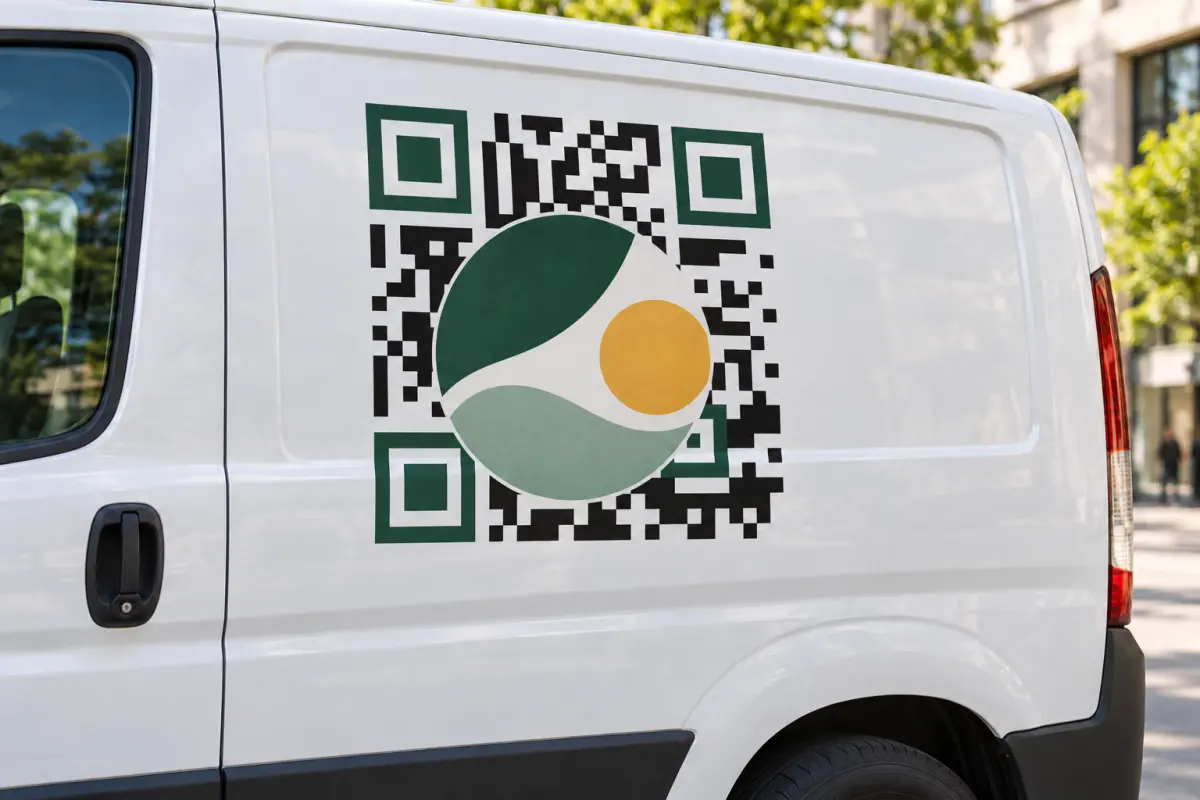
Fix: use High error correction with a logo, keep the logo well under 30% of the code’s width, give it a plain patch behind it, and never put anything on the three corner squares.
5. Too much in the code
The more a code holds, the more modules it needs: from 21 across for the smallest to 177 for the largest. At the same printed size, more modules means smaller ones, harder to read from far away. A long web address with tracking tags, or a contact card with every field, makes a dense code.
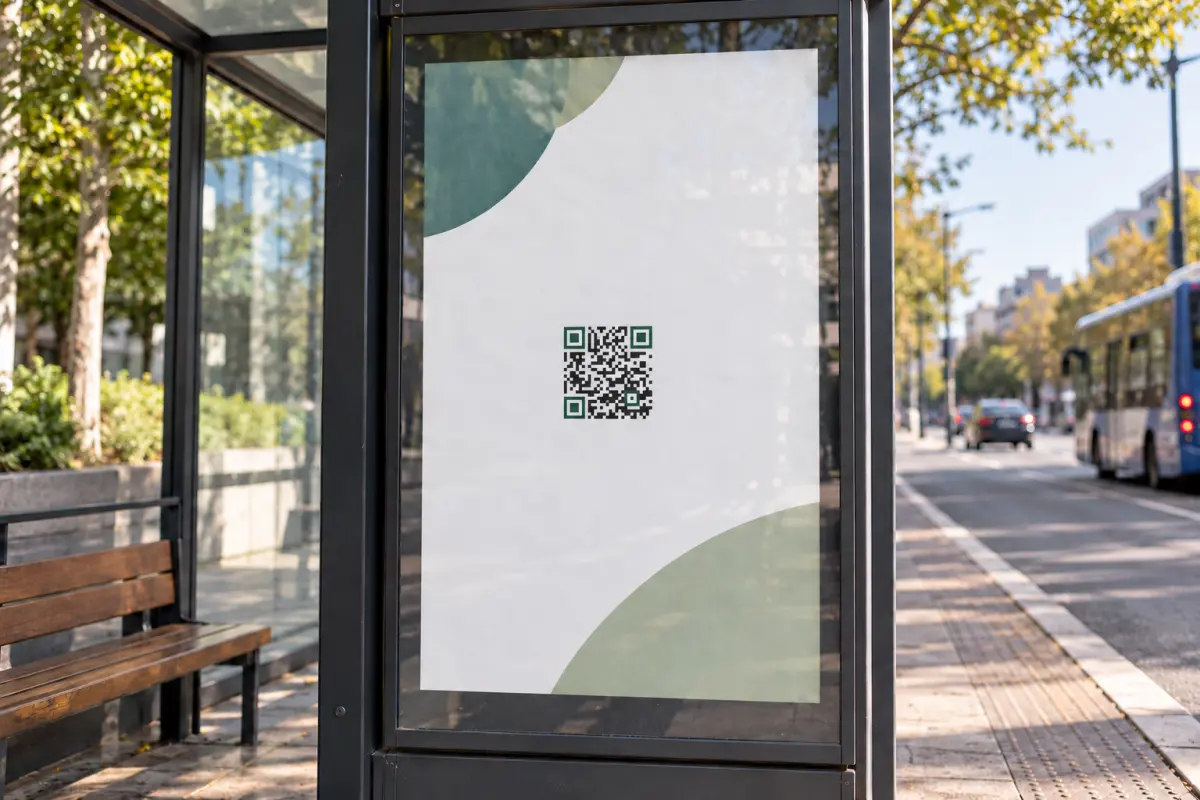
Fix: shorten what it holds: a shorter address, fewer fields. A short link (a dynamic code) keeps the code simple however long the address it leads to. Or print it bigger: paste the content into the calculator above to see by how much.
6. Glossy, curved or behind glass
Gloss, lamination and glass reflect light: a bright spot over part of the code hides it. On a bottle or a cup, the code curves away from the camera, and the modules at the edges look squeezed. Codes on screens can suffer from glare and low brightness too.
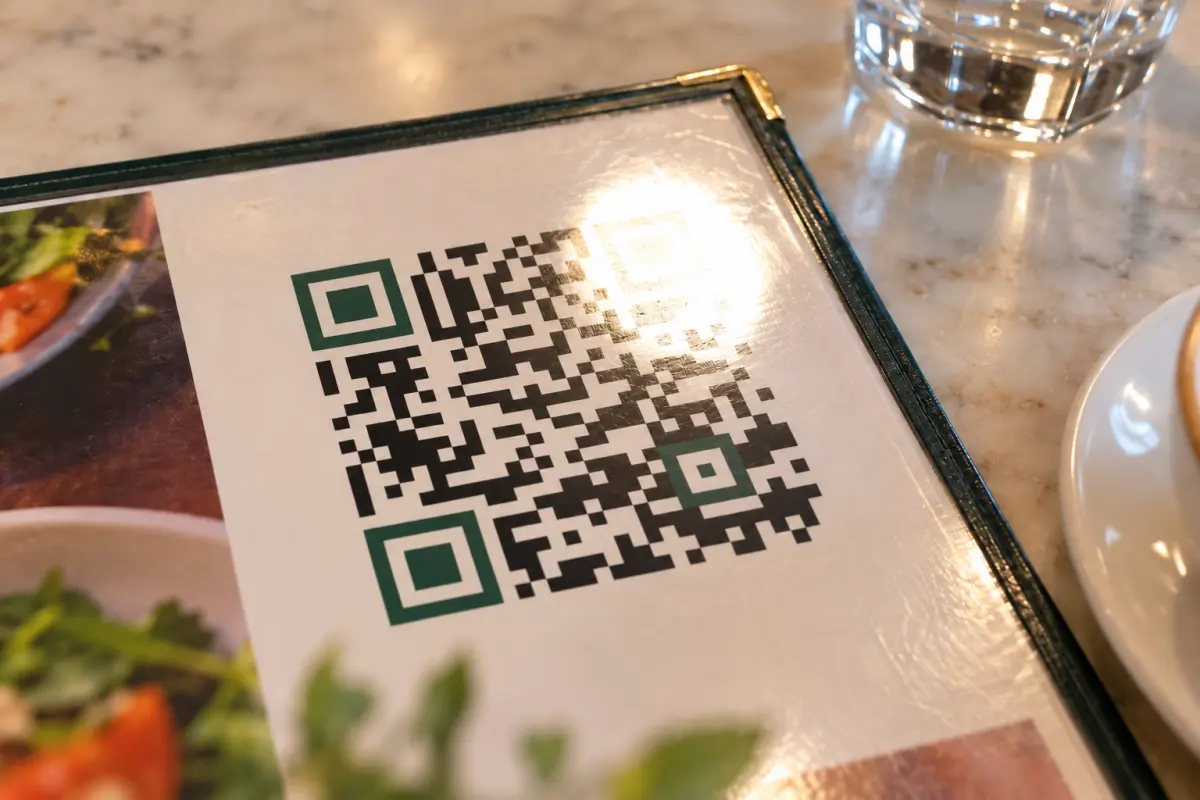
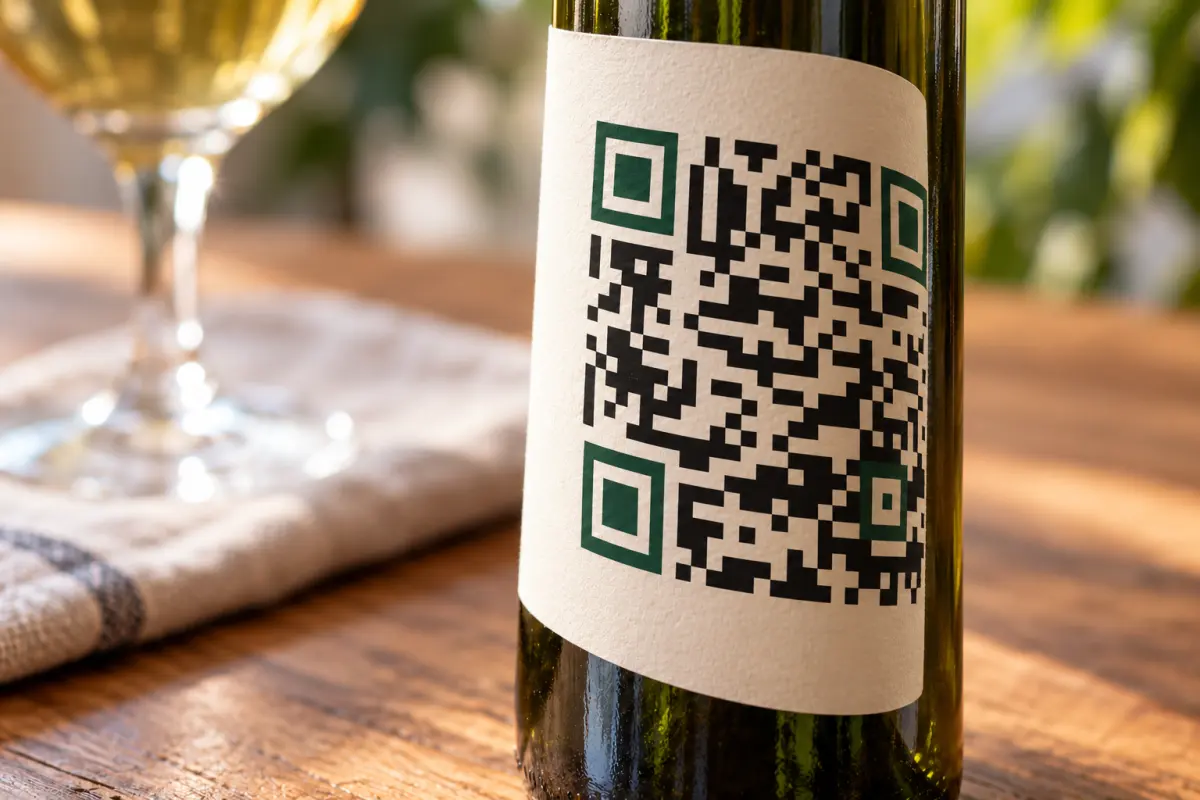
Fix: a matte finish or matte lamination; on a window, the code on the inside facing out, away from reflections. On a curved surface, keep the code narrow compared with the curve, or put it where the surface is flattest. Test it where it will be, in that light.
7. Scratched, faded or folded
Outdoors, sun fades the ink; in a shop, people’s fingers wear it off; a fold runs right through the middle of a flyer. Error correction makes up for some of it, but not for damage to the corner squares.
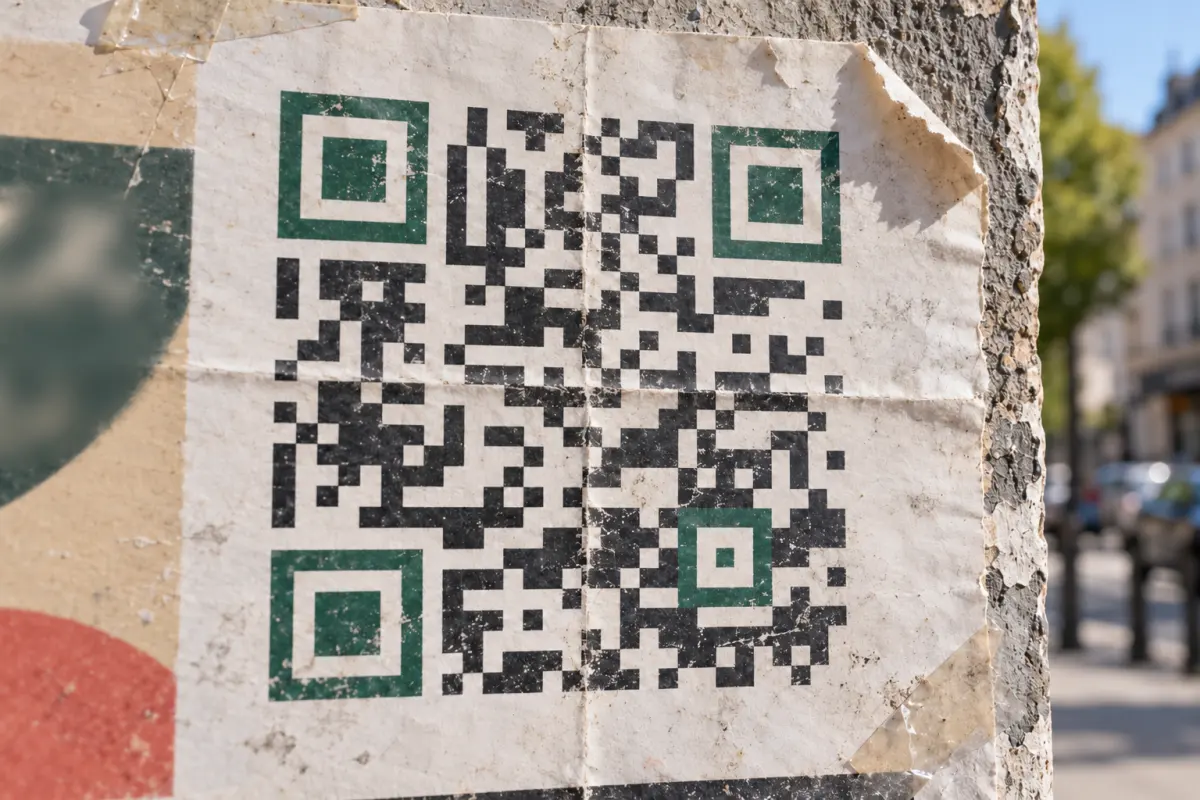
Fix: for codes that will get handled or weathered, use High error correction and a protective lamination (matte). Keep the code away from folds and edges. When it’s worn, reprint it: a sticker over the old one is enough.
8. It scans, but nothing opens
If the phone reads the code but shows an error, a blank page or someone else’s page, the print is fine: the problem is the address it holds. The website may have moved, or the code goes through a service that switched it off, often when a free trial ended. The QR code checker shows what a code holds and what that address answers today.
If the phone shows the address as text instead of a link, it was
probably written without https://: some phones then don’t
recognise it as a web address.
For codes that stopped working, and what you can do with one already printed: Do QR codes expire? What can stop one, and how to avoid it.
Before you print
- Print a test copy at the real size and scan it from the real distance.
- Try two or three phones, an iPhone and an Android, with the camera app.
- In the real light: a dim bar, a bright window.
- Check where it leads, on mobile data, not only on your office Wi‑Fi.
If one phone won’t scan any code at all: clean the lens, check that QR code scanning is on in the camera’s settings, or try Google Lens.
What the olinqs generator does about it
- Contrast: it warns when the colours are too close or the code is lighter than its background, and suggests testing a print when bright colours are borderline.
- Margin: codes come with a 4-module margin; under 2 it warns that many scanners can’t find them.
- Logo: error correction is High unless you change it. If a logo is bigger than the level can recover, it says so and offers the level that fits, in one click.
-
Addresses: it adds
https://to a web address typed without it. - Print files: SVG for any size, PNG up to 4096 pixels.
- Static QR codes are free, with no account. An editable code holds a short link, which keeps it simple, and costs $10 once.
Questions
- What is the minimum size for a QR code?
- About 2 × 2 cm (0.8 in), for a short address read from close up, like on a business card. Further away, or with more content, it needs to be bigger: the calculator works it out.
- How big should a QR code be on a poster?
- Read from 1 to 2 metres (3 to 6 feet), a short address needs about 15 to 30 cm (6 to 12 in), margin included. More if people read it from further away.
- Does a QR code need a white border?
- It needs an empty margin, 4 modules wide. It doesn’t have to be white, just the same light colour as the code’s background.
- Can a QR code be in colour?
- Yes, as long as the code is dark and the background light, with strong contrast between them.
- Why does it scan on one phone and not another?
- Cameras differ in resolution and focus, and scanner apps differ in what they forgive: inverted colours, a missing margin, a big logo. A code that only scans on some phones is a code at the limit: fix the cause rather than relying on the best phone.
Sources
- ISO/IEC 18004:2024, the QR code standard: the quiet zone of 4 modules on all four sides, and sizes from 21 to 177 modules across (versions 1 to 40).
- DENSO WAVE, inventor of the QR code, “Error correction feature”: levels L, M, Q and H, which recover about 7%, 15%, 25% and 30% of the code.
- DENSO WAVE, “Information capacity and versions of QR Code”: more data takes more modules.
- W3C, WCAG 2.2, “contrast ratio”: the measure the olinqs generator uses for its contrast warnings.
The distance-to-size ratio is a rule of thumb used in printing, not a standard. Test a printed copy before printing many. The photos are illustrations made for this guide.